
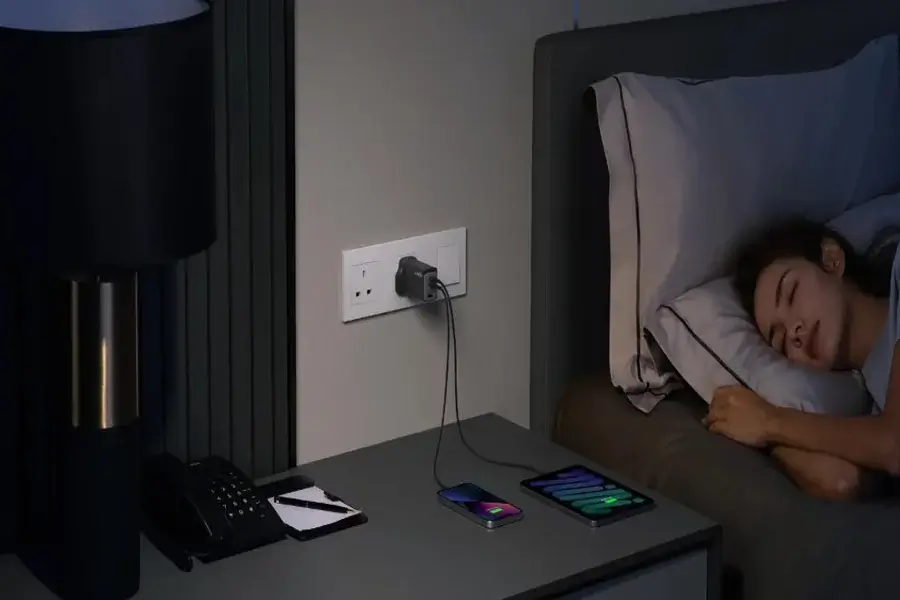
You plug in your iPhone before bed, expecting it to be fully charged by morning, but you wake up to find it only halfway charged. This daily frustration is more common than you might think. A slowly charging iPhone can disrupt your routine, leaving you anxious about battery life throughout the day. Understanding the root causes is the first step toward a solution. In this article, we will explore the common reasons behind slow charging and provide practical, effective fixes to get your iPhone powered up quickly and reliably.
Common Causes of Slow iPhone Charging
Using Non-Certified or Damaged Cables/Adapters
One of the most frequent culprits behind a sluggish charging experience is the use of accessories that are not designed to work optimally with your iPhone. While that cheap cable or generic power adapter might seem like a bargain, it often lacks the proper internal components to manage power delivery efficiently. These non-certified accessories might only deliver a fraction of the power your iPhone can accept, dramatically increasing charging time. Furthermore, they can fail to negotiate the correct charging speed with your phone, defaulting to a much slower, trickle charge. Physical damage, such as frayed wires or a loose connection, exacerbates this problem by further impeding the flow of electricity.
Background Apps and Processes Draining Power
Imagine trying to fill a bathtub while the drain is still partially open; the water level will rise much more slowly. This is exactly what happens when your iPhone is busy running apps and processes in the background while charging. Activities like automatic app updates, large file downloads, streaming music, or even poor cellular signal strength force the phone’s processor and radios to work harder, consuming significant power. This means a substantial portion of the incoming power from the charger is immediately used to sustain these activities instead of directing it all to the battery. Location services refreshing in the background or an app with a bug that causes it to hang can silently drain energy without you even realizing it.
How to Diagnose Slow Charging Issues?
Checking Cable, Charger, and Power Source
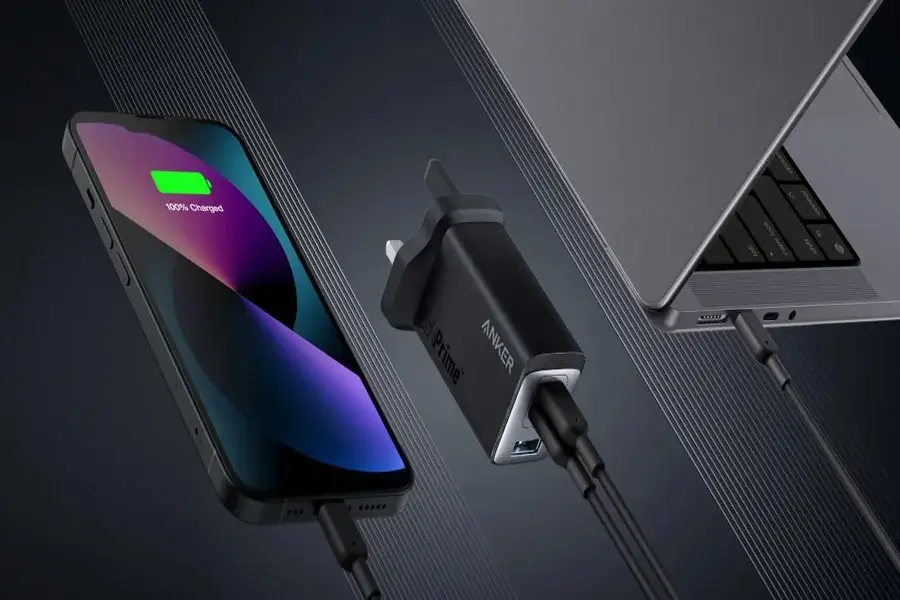
A thorough diagnosis should always start with the most obvious components: your cable, charger, and where you’ve plugged it in. Begin by physically inspecting your charging cable for any signs of wear and tear, such as kinks, exposed wires, or bent connectors. Try plugging your phone into a different wall outlet to rule out a faulty socket. Perhaps your frustration can be quickly resolved by simply replacing your current charger with a high-quality iphone charger from a major brand like Anker, which is designed to deliver consistent, high-speed power. Systematically testing each element of your charging setup is the most reliable way to identify and eliminate the physical source of the problem.
Identifying Software or Battery Health Problems
If your hardware checks out, the issue likely lies within the phone’s software or its battery health. A simple yet effective first step is to restart your iPhone, which can clear out minor software glitches and terminate errant background processes that might be hindering performance. For a deeper look, navigate to Settings > Battery > Battery Health & Charging. Here, you can check your battery’s Maximum Capacity; a percentage significantly below 80% indicates an aged battery that can no longer hold a charge effectively and will charge much more slowly. Also, pay attention to your charging habits, as consistently letting your battery drain to zero before plugging it in can accelerate its degradation over time.
Effective Fixes to Speed Up Charging
Optimizing Charging Setup and Settings
A few strategic changes to how and what you use to charge can make a world of difference. The single most impactful change you can make is to use a powerful wall charger that supports faster charging standards, paired with a high-quality, durable cable designed for high-wattage transfer. Enabling Airplane Mode while charging is a remarkably effective trick, as it disables all wireless radios—cellular, Wi-Fi, and Bluetooth—preventing them from consuming power while your phone charges. This one action can cut charging time substantially. Additionally, managing your settings by turning off Background App Refresh for non-essential applications ensures they aren’t secretly active.
Reducing Power Usage During Charging
Being mindful of how you use your phone while it’s plugged in is key to achieving the fastest possible charge. If you cannot use Airplane Mode, make a conscious effort to avoid power-intensive activities like playing graphics-heavy games, editing videos, or using augmented reality apps while charging. These tasks generate heat and force the processor to work at maximum capacity, which not only slows charging but can also cause long-term damage to the battery. If you need to charge quickly, simply let your phone rest. Turning on Low Power Mode from the Control Center is an excellent compromise, as it automatically reduces background activity and visual effects, curbing energy use and allowing more power to flow to the battery.
Conclusion
A slow-charging iPhone can be frustrating, but it’s rarely a permanent issue. By understanding common causes—such as poor-quality cables, background apps, and battery wear—you can diagnose the problem methodically. Solutions are often straightforward and practical, involving optimizing your charging accessories, adjusting settings, and modifying daily habits. Prioritizing certified, high-quality charging gear and being proactive about your phone’s software and battery health will ensure a reliable and fast charging experience.