

Dust, lint, and small debris often find their way into everyday devices, and your MacBook’s charging port is no exception. Over time, these particles can build up and block a proper connection between the charger and your laptop. Many people may notice slower charging or a charger that feels loose without realizing that the port itself needs attention. Keeping this small but important part of your MacBook clean ensures that energy flows efficiently and safely. In this article, we will explore the signs that your port may need cleaning, the right tools for the job, and the safest methods to keep your MacBook charging smoothly.
Signs Your MacBook Charging Port Needs Cleaning
Loose Cable Connection or Difficulty Charging
One of the earliest warning signs of a dirty charging port is when the cable does not sit firmly in place. You may find yourself adjusting the charger repeatedly, trying to find the “right angle” to make the connection work. This is often caused by dust or lint that prevents the plug from fully engaging with the port. Over time, forcing the cable in and out can damage both the connector and the port itself, leading to expensive repairs. Some users may even think the charger is broken when, in fact, the port just needs a simple cleaning. Paying attention to these small signs early can save you from bigger issues later.
Visible Debris or Lint in the Port
Another clear indicator is when you can actually see dust, lint, or tiny fibers sitting inside the charging port. This is particularly common if you often carry your MacBook in a backpack, purse, or pocket where fabric lint is present. Small particles can gather gradually, and while a thin layer may seem harmless, it can quickly accumulate and block the electrical connection. In some cases, the charger may not even click securely into place, leaving you with an unstable power supply. Ignoring this buildup not only affects charging efficiency but may also trap heat, which is harmful over time. Taking action once you notice debris ensures your MacBook remains both functional and safe.
Tools You’ll Need for Safe Cleaning
Before attempting to clean your MacBook’s charging port, it is important to gather the right tools. Using improper items such as metal pins, paper clips, or sharp objects can easily damage the delicate internal pins. Instead, safe options include a soft-bristle brush, a wooden or plastic toothpick, and a can of compressed air. A flashlight can also be helpful for clearly seeing inside the port before and after cleaning. Microfiber cloths are useful for wiping down the surrounding area, keeping dust from falling back into the port. Having the correct tools not only makes cleaning easier but also ensures you do not unintentionally cause harm during the process.
Steps to Cleaning the Port
Powering Down and Preparing Your MacBook
The first step in safely cleaning the charging port is always to power down your MacBook completely. Shutting it off minimizes the risk of electrical short circuits while you are working near sensitive components. It is also a good idea to unplug any connected accessories so that nothing interferes with your cleaning process. Place your MacBook on a clean, stable surface with good lighting, and use a flashlight to inspect the inside of the port. Take note of how much dust or debris is visible, as this will guide how thorough your cleaning needs to be. Proper preparation sets the stage for a safe and effective cleaning process.
Gently Removing Debris Without Damaging Pins
Once your MacBook is off and ready, begin by using short bursts of compressed air to loosen any dust or lint trapped inside the port. Hold the can upright to avoid moisture, and keep it a few inches away to prevent pressure damage. If stubborn debris remains, gently use a wooden or plastic toothpick to coax it out, being careful not to scrape or bend the pins. A soft-bristle brush can also help sweep out remaining particles without applying too much force. It is important to work slowly and check your progress frequently with a flashlight to ensure you do not miss hidden buildup. Patience here will reward you with a clean, functional port and a reliable charging connection.
Post-Cleaning Steps and Verification
Testing the Charging Connection
After cleaning, reconnect your charger to test whether the issue has been resolved. A clean port should allow the cable to sit securely and provide a consistent flow of power without interruptions. If charging feels smoother and no longer requires adjusting the plug, you have likely solved the problem. Even if your MacBook seemed to work fine before, you may notice faster charging now that the connection is unobstructed. It is also a good idea to observe the charger for a few minutes, ensuring there are no sparks, unusual heat, or other irregularities. A stable, reliable charging connection is the best confirmation that your cleaning was successful.
When to Seek Professional Help?
In some cases, cleaning alone may not solve charging issues. If your MacBook still refuses to charge or shows signs of overheating, the problem may be more serious than just dust buildup. A damaged charging port or internal circuitry requires professional repair, as attempting to fix it yourself can worsen the issue. Certified technicians can inspect the port safely and replace damaged parts if needed. Seeking professional help is especially important if you notice burning smells, sparks, or visible damage inside the port. Remember, protecting your MacBook’s hardware is worth the extra caution when home cleaning methods do not work.
Conclusion
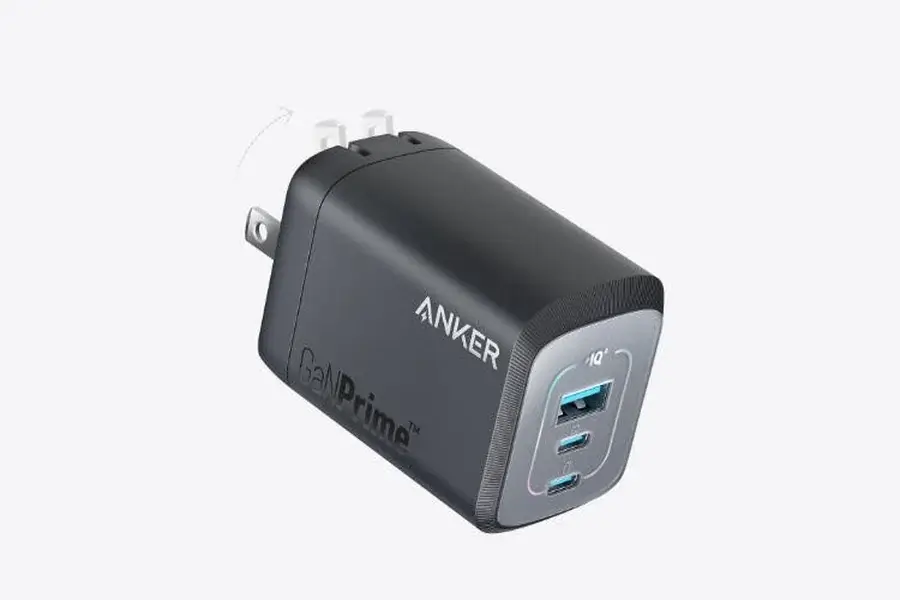
Cleaning your MacBook’s charging port is essential for maintaining performance and extending the life of both your laptop and charger. Notably, using a subpar macbook charger can also lead to overheating or unstable current, potentially damaging the charging port. Regular maintenance and choosing a reliable charger, like Anker’s highly praised options, can prevent costly repairs and ensure a safer charging experience.